Contents
IA-32/Intel® 64 Architecture debugging
Intel® Xeon Phi™ coprocessor debugging
Intel® Debugger for Heterogeneous Compute

The GNU* Project Debugger (GDB) provided with the Intel® Parallel Studio XE Composer Edition is based on GDB with enhancements provided by Intel.
It comes in different versions:
Debug applications natively on IA-32 or Intel® 64 Architecture systems.
Always source the following script in the same environment where you use the debugger:
source <install-dir>/bin/compilervars.sh
<install_dir> is the installation
directory, by default, it is:
/opt/intel/<suitename>
$HOME/intel/<suitename>For other prerequisites, new debugger features, hardware and software requirements, and known issues refer to the product release notes.
To debug applications natively on IA-32 or Intel® 64 Architecture systems, start GDB with the following command:
gdb-ia
The actual debugger usage is the same as for the GNU* Project Debugger. Extensions for IA-32/Intel® 64Architecture are described in the debugger documentation.
Debug applications remotely on Intel® Xeon Phi™ coprocessor systems.
The debugger runs on a host system and a debug agent (gdbserver) runs on the coprocessor. There are two options:
Always source the following script in the same environment where you use the debugger:
source <install-dir>/bin/compilervars.sh
<install_dir> is the installation
directory, by default, it is:
/opt/intel/<suitename>
$HOME/intel/<suitename>For other prerequisites, new debugger features, hardware and software requirements, and known issues refer to the product release notes.
Debugging applications for the Intel® Xeon Phi™ coprocessor is different to debugging local applications, because of the difference of host and target:
The host is running the debugger GNU* GDB. This system can be the host containing the coprocessor cards or any other development host.
The target, here the coprocessor itself, executes a debug agent (gdbserver) to which the host connects to.
For more information on debugging on the Intel® Xeon Phi™ coprocessor, see also
http://software.intel.com/en-us/articles/debugging-intel-xeon-phi-applications-on-linux-host
You can either start the debugger from the command line or from Eclipse* IDE.
$ scp <install-dir>/debugger_2016/gdb/targets/mic/bin/gdbserver "mic0:/tmp"
$ gdb-mic(gdb) target extended-remote | ssh mic0 /tmp/gdbserver --multi –
(gdb) file <path_on_host>/application
(gdb) set remote exec-file <path_on_target>/application
(gdb) file <path_on_host>/application
(gdb) attach <pid>
<install_dir> is the installation
directory, by default, it is:
/opt/intel/<suitename>
$HOME/intel/<suitename>AMPLXE_COI_DEBUG_SUPPORT=TRUE
MYO_WATCHDOG_MONITOR=-1
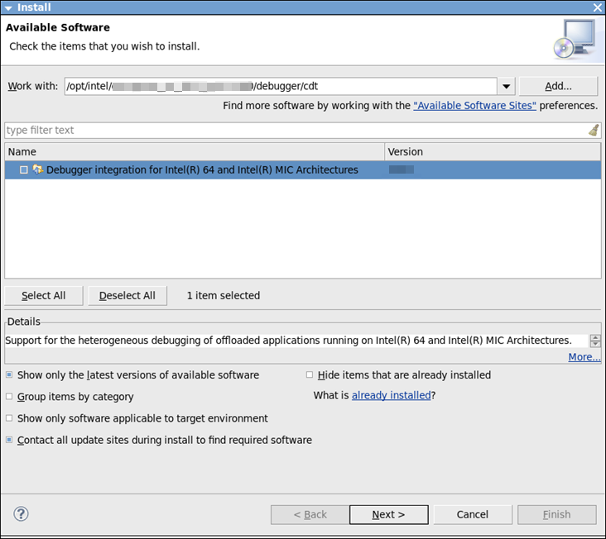
Complete the installation of the plugin.
Restart Eclipse* IDE.
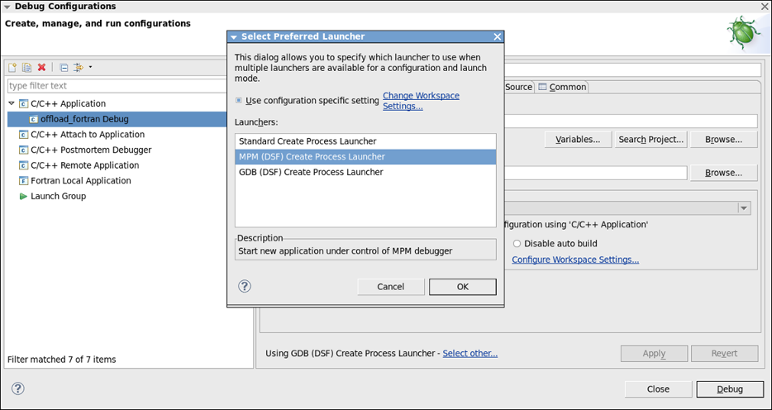
Select Run > Debug Configurations and create a new debug configuration.
For Using Standard Create Process Launcher, click Select other… and select MPM (DSF) Create Process Launcher.
For example, Luna -http://download.eclipse.org/releases/luna.
Debug parts of the code that gets executed on an Intel® integrated GPU applications remotely. The debugger runs on a host system and a debug agent (gdbserver-igfx) runs on the target system.
Required Hardware
Two systems are required for debugging code running on the GPU. The main reason for this requirement is
that video output from the GPU could be interrupted during debugging, which would make an IDE integrated
debugger impossible to use on a single system.
The currently support target CPUs are Intel 4-th
and 5-th Generation Core processors with integrated
graphics. The detailed target system setup is detailed below.
The host system can be any stable, relatively recent Linux* distribution with no special requirements to host
hardware. For this document, the host system is assumed to be CentOS* 7, but other systems work as well.
Both systems should be able to communicate freely with each other over TCP/IP networking, ideally within
the same sub-net and a Domain Name Server.
In addition, it is required to have the ability to elevate privileges using "sudo" or "su" commands for the
purpose of installation of required packages.
Required Software Packages
This target setup description uses CentOS* 7 as the base installation. Currently only 64-bit versions are supported.
Target:
sudo yum -y update
sudo yum -y
group install "Development Tools"
sudo yum -y install
pciutils redhat-lsb nfs-utils mesa-dri-drivers rpm-build
redhat-rpm-config \
5
asciidoc hmaccalc perl-ExtUtils-Embed pesign xmlto
audit-libs-devel binutils-devel elfutils-devel \
elfutils-libelf-devel newt-devel numactl-devel
pciutils-devel python-devel zlib-devel net-tools \
cmake
ncurses-devel wget
sudo usermod -a -G video $USER
sudo
reboot
Note:
This NFS sharing setup is not secure. Other systems may connect to the NFS server and access files.
Please refer to external documentation for more information about how to secure an NFS server.
Target:
mkdir shared
sudo mkdir -p
/export/shared
sudo chown $USER.$USER /export/shared
sudo
sh -c 'echo "/export
*(rw,fsid=0,insecure,no_subtree_check,async)" >>/etc/exports'
sudo sh -c 'echo "/export/shared
*(rw,nohide,insecure,no_subtree_check,async)" >>/etc/exports'
sudo sh -c 'echo `pwd`/shared /export/shared none rw,bind 0 0
>>/etc/fstab'
sudo mount -a
sudo firewall-cmd --permanent
--add-port=2049/tcp
sudo firewall-cmd --permanent
--add-port=10000/tcp
sudo firewall-cmd --permanent
--add-port=61000-61100/tcp
sudo systemctl enable rpcbind
sudo
systemctl enable nfs-server
sudo systemctl enable nfs-lock
sudo systemctl enable nfs-idmap
sudo systemctl restart
rpcbind
sudo systemctl restart nfs-server
sudo systemctl
restart nfs-lock
sudo systemctl restart nfs-idmap
Host:
cd ~
mkdir shared
sudo mount
-t nfs4 igfx-target:/shared ~/shared
Host:
mkdir -p ~/shared/drivers
cd
~/shared/drivers
cp
<driver-file-location>/intel-linux-media_<distribution>.<version-number>_64bit.tar.gz
./
Target:
cd ~/shared/drivers
tar xfz intel-linux-media_<distribution>.<version-number>_64bit.tar.gz
sudo ./install_media.sh
mkdir patches
cd patches
tar xfjv /opt/intel/mediasdk/opensource/patches/kmd/3.10.0/intel-kernel-patches.tar.bz2
for PATCH_FILE in intel-kernel-patches/*.patch; do cat $PATCH_FILE >> ./intel-kernel.patch; done
Target:
mkdir -p ~/rpmbuild/{BUILD,BUILDROOT,RPMS,SOURCES,SPECS,SRPMS}
echo '%_topdir %(echo $HOME)/rpmbuild' > ~/.rpmmacros
KERNEL1=`uname -r`
KERNEL2=${KERNEL1%.x86_64}
rpm -i http://vault.centos.org/7.0.1406/updates/Source/SPackages/kernel-$KERNEL2.src.rpm
cd ~/rpmbuild/SPECS
rpmbuild -bp --target=$(uname -m) kernel.spec
cd ~/rpmbuild/BUILD/kernel-$KERNEL2/linux-$KERNEL1
patch -p 1 <~/shared/drivers/patches/intel-kernel.patch
sed -i 's/CONFIG_STRICT_DEVMEM=y/# CONFIG_STRICT_DEVMEM is not set/g' .config
sed -i 's/bool i915_enable_hangcheck __read_mostly = true;/bool i915_enable_hangcheck __read_mostly = false;/g' drivers/gpu/drm/i915/i915_drv.c
sed -i 's/int i915_enable_ppgtt __read_mostly = -1;/int i915_enable_ppgtt __read_mostly = 1;/g' drivers/gpu/drm/i915/i915_drv.c
sed -i 's/int i915_enable_cmd_parser __read_mostly = 1;/int i915_enable_cmd_parser __read_mostly = 0;/g' drivers/gpu/drm/i915/i915_drv.c
make olddefconfig
make -j16
sudo make modules_install
sudo make install
sudo reboot
This completes the target setup. To run a sanity test after the reboot, execute:
Target:
vainfo
For this setup, we assume a standard installation of CentOS* 7 as a desktop system with development tools present.
Host:
cd ~
tar xfz
eclipse-cpp-luna-R-linux-gtk-x86_64.tar.gz
Host:
cd ~
mkdir shared
sudo mount -t nfs4
igfx-target:/shared ~/shared
Host:
cd ~/shared
INSTALLDIR=
cp -r $INSTALLDIR/debugger_2016/targets/intel64_igfx .
cp
-r $INSTALLDIR/lib/* .
tar xfz
$INSTALLDIR/samples_2016/en/compiler_c/psxe/gfx_samples.tar.gz
source $INSTALLDIR/bin/compilervars.sh intel64
~/eclipse/eclipse
Host:
Select New > Makefile Project with Existing Code. Set the project to, for example, Samples and browse for the location in ~/shared/gfx_samples.
By default the projects are not built with debug information enabled, so open the ~/shared/ gfx_samples/Makefile and modify the line for CFLAGS to:
Makefile:
CFLAGS = -MMD -g -O0 -I_gfx_O0
The next step is to create a debug configuration:
The host system is now ready for debugging. Do not press the Debug button yet, since debugging needs to be started on the target system.
The final step in the system setup is to start debugging on the target system.
Since the project files are already shared, there is no need to transfer any files.
The debugger framework requires a system service daemon to run in the background for managing the
access the GPU hardware registers. This service only needs to be started once and can continue to run
indefinitely.
Target:
sudo ~/shared/intel64_igfx/bin/igfxdbgd
Note:
If you want to stop the service daemon after a debugging session, you can use the -t option.
Target:
sudo ~/shared/intel64_igfx/bin/igfxdbgd -t
Now the debugger server can be started, which launches the target program.
Target:
# Set up compiler runtime, if necessary
export
LD_LIBRARY_PATH=$LD_LIBRARY_PATH:/home/testuser/shared/system_studio_target/compiler/lib/intel64
~/shared/intel64_igfx/bin/gdbserver-ia.sh
:10000~/shared/gfx_samples/out/Matmult
Now switch back to the host system and click Debug. The debugging session should start and execution will stop just inside the main() function.
At this point debugging should work as normal. To stop in any code on the GPU, insert a breakpoint at relevant code locations after pragma offload target(gfx) statements. In this example, one such location can be found in the In this example, one such location can be found in the Matmult.cpp source file from line 370 onward.
Once the host application starts offloading code, the GPU threads are automatically added to the debugging session and inserted breakpoints get triggered as the execution comes across them.
Note:
In some cases, and depending on network speeds, it might take 10-20 seconds for all debug
information to get processed and loaded, due to the remote debugging configuration.
CentOS* 7 has a firewall enabled by default. If there is any problem with connections between the debugger and the debug server (from host to target) ensure the ports are opened in the firewall. Altenatively, disable the firewall.
Document |
Description |
|---|---|
| Contains descriptions of the GNU* Debugger (GDB) functions and interfaces including Intel-extended features for debugging applications natively on IA-32 or Intel® 64 Architecture systems | Contains descriptions of the GNU* Debugger (GDB) functions and interfaces including Intel-extended features for debugging applications remotely on Intel® Xeon Phi™ coprocessor systems (Linux* OS host only) |
| Contains descriptions of the GNU* Debugger (GDB) functions and interfaces including Intel-extended features for the Intel® Debugger for Heterogeneous Compute | |
|
GDB Manual in Info format |
To read the GDB Manual in the Info format, use the following command: info gdb-ia (on IA-32/Intel® 64 Architecture systems) or info gdb-mic (on Intel® Many Integrated Core Architecture (Intel® MIC Architecture) systems) or info gdb-igfx (Intel® Debugger for Heterogeneous Compute) |
GDB man pages |
To access the GDB man pages, set the environment variables by sourcing the compiler environment script, compilervars.sh, and use the following commands: man gdb-ia or man gdb-mic or man gdb-igfx |
| Intel® Parallel Studio XE 2016 product page. See this page for support and online documentation. |