toolbar button. For
information on how to use the Performance Assistant in the CLI, refer
to the Command Line Interface (CLI)
section.
toolbar button. For
information on how to use the Performance Assistant in the CLI, refer
to the Command Line Interface (CLI)
section.Intel® Trace Analyzer 9.1 Update 1 User and Reference Guide
Performance Assistant provides you with the general and detailed information about performance problems. You can use this feature either in GUI or in the CLI mode.
To access the tool from the GUI, go to Charts > Performance
Assistant or use the toolbar button. For
information on how to use the Performance Assistant in the CLI, refer
to the Command Line Interface (CLI)
section.
By default, the Performance Assistant does not display all performance problems in your application so that not to slow down the work of the Intel® Trace Analyzer. If you want to get information on all the performance issues, select Show advanced... . Note that this options resets zoom to default. It can also slow down the work of the Intel Trace Analyzer.
Performance Assistant is not supported when the tracefile is collected with enabled Message Checker or TIME-WINDOWS. The data displayed by the Performance Assistant in this case are incorrect.
Use the upper section of the Performance Assistant to see all discovered performance problems and their duration. The duration of the problem is displayed in two values - the absolute value and the percentage of the application running time.
Use the lower section of the Performance Assistant to get detailed information on the selected problem. The lower section contains the following tabs:
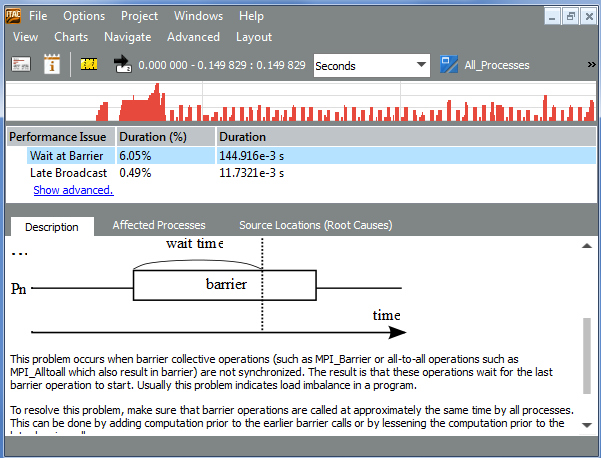
In the Description tab, get the description of the problem and recommendations on how to fix it. For example:
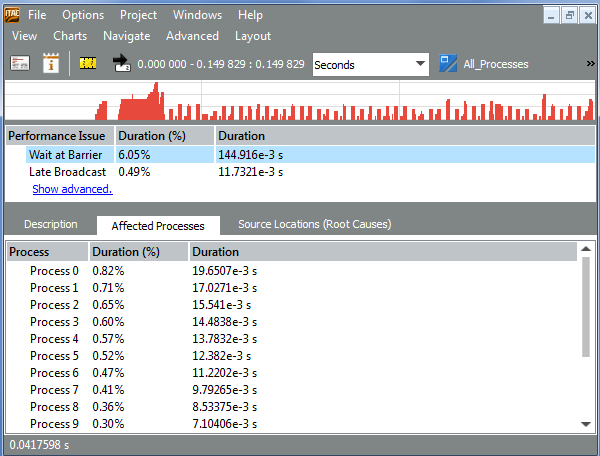
In the Affected Processes tab, see the distribution of the performance problem duration among the processes. For example:
Go to the Source Locations (Root Causes) tab, to get instances of the problem in the source code.
Performance Assistant displays source code only if debug information is present in it and the VT_PCTRACE environment variable is enabled.
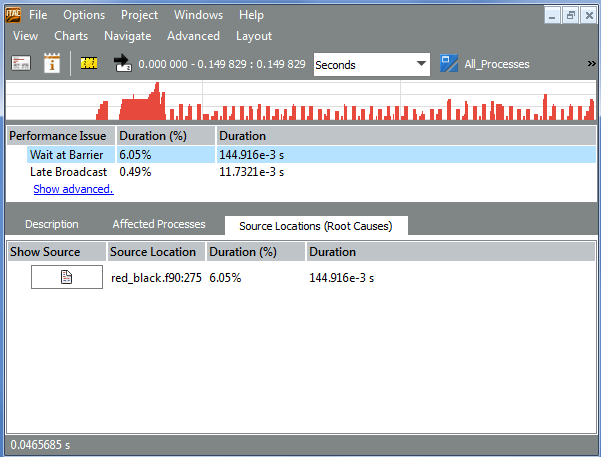
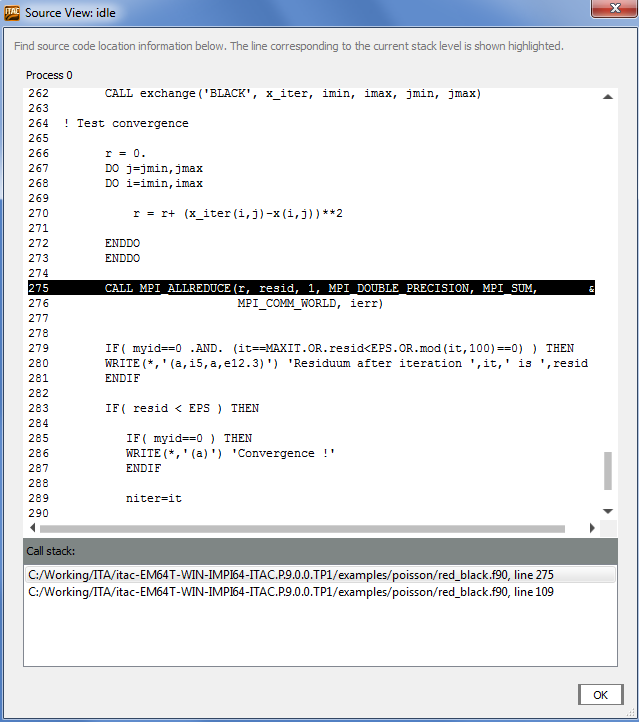
Press the Show Source button to open the Source View dialog box and see the problem-causing calls. Change the highlighted code to fix the problem (get the possible solutions under the Description tab of the Performance Assistant). The Source View dialog box also contains the call stack information.
For example: