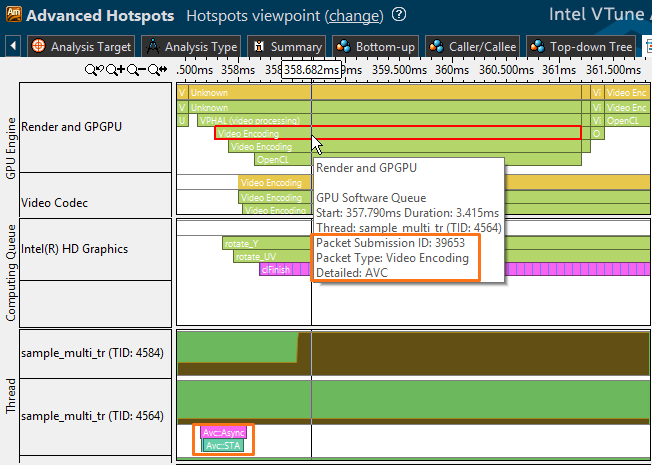
For Linux* target systems, enable analysis of Intel® Media SDK tasks execution over time.
Prerequisites for the target Linux system:
-
Rebuild the kernel to disable the module signature verification:
-
Download and extract the kernel source archive.
Note
Getting Linux sources and building them varies per system distribution. For example, for Ubuntu* follow these instructions: https://help.ubuntu.com/community/Kernel/Compile.
-
Launch the kernel configuration manager:
> make menuconfig
-
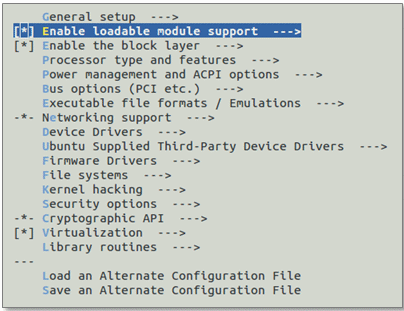
Select the Enable loadable module support menu option:
-
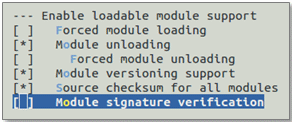
Uncheck the Module signature verification option:
-
Build the kernel.
-
Boot with the new kernel.
-
-
- For remote collection, make sure to prepare your target Linux system for the VTune Amplifier analysis.
To configure the Intel Media SDK task analysis with the VTune Amplifier:
- Launch the VTune Amplifier with root privileges.
-
Click the
 New Analysis button on the VTune Amplifier toolbar.
- In the Choose Analysis Type window, select an algorithm or custom analysis type.
- In the configuration pane on the right, select the Trace OpenCL and Intel Media SDK programs (Intel HD Graphics only) option.
- Optionally, select the Analyze GPU usage option.
- Click Start to launch the analysis.
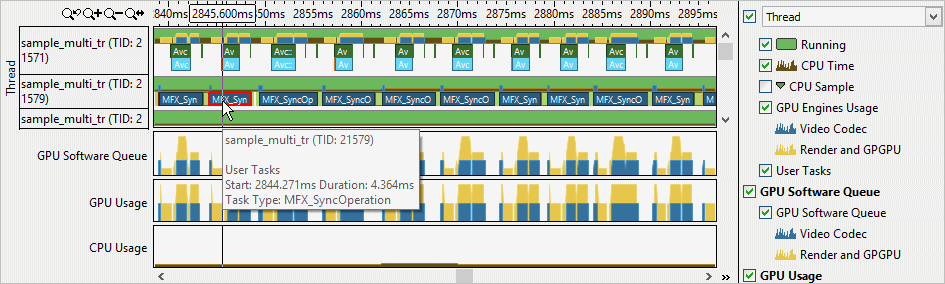
When the data collection completes, the VTune Amplifier opens the result in the default viewpoint. To analyze Intel Media SDK tasks, focus on Timeline pane. If you enabled the Analyze GPU usage option for the collection, use the Graphics window to correlate data for the Intel Media SDK tasks execution with the GPU software queue data.
Switch to the Platform window and explore the GPU Engine area that shows a GPU software queue and GPU packet submission details for Intel Media SDK applications: