Use Storage Performance Snapshot to quickly analyze how effectively a workload uses the available storage, CPU, memory, and network.
Note
This is a PREVIEW FEATURE. A preview feature may or may not appear in a future production release. It is available for your use in the hopes that you will provide feedback on its usefulness and help determine its future. Data collected with a preview feature is not guaranteed to be backward compatible with future releases. Please send your feedback to parallel.studio.support@intel.com for VTune Amplifier XE and to intelsystemstudio@intel.com for VTune Amplifier for Systems.
The Storage Performance Snapshot tool analyzes your Linux* system's storage, CPU, memory, and network usage and displays basic performance enhancement opportunities for systems using Intel® hardware. Storage Snapshot provides a first look at system performance and can be used to determine if additional analysis is required.
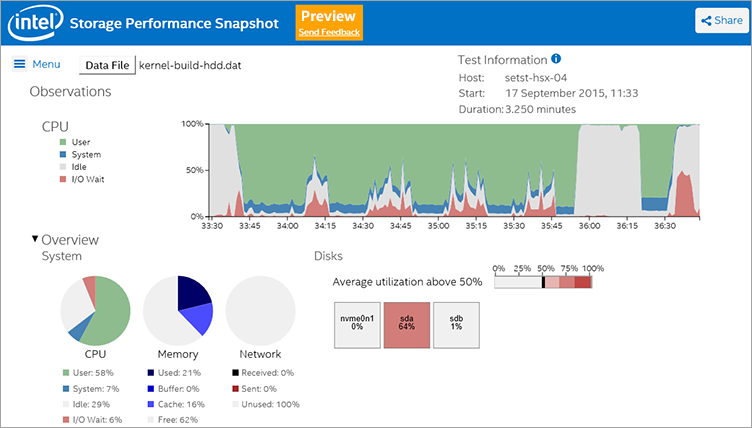
When running a continuous workload, which is often the case for systems in a data center, it is important to minimize the time spent waiting for tasks to complete. Storage Performance Snapshot analyzes the operating system traces for high-level utilization of the system resources, including context switch, memory utilization, and network utilization. The tool uses this data to identify when the system is idle or has threads that are waiting for information to arrive from storage. On Linux systems, Storage Performance Snapshot uses dstat to gather this information.
Install
Storage Performance Snapshot is available as a free product download from the Intel® Developer Zone and is also available pre-installed as part of Intel® Parallel Studio, Intel® System Studio, and Intel® VTune™ Amplifier XE.
To get the free product download:
- Visit http://www.intel.com/storage-snapshot for the latest product download package.
- Download the installation .tgz (Linux*) file to your local system.
- Extract the contents to a writeable location on your local system.
Use

Identify a typical workload for the system under analysis. Systems in a data center or those running a continuous workload could use a sample time period.
Collect data. Refer to the Install page for your operating system for prerequisites if this is the first time you are running the analysis.
Note
If this is the first time you are running the analysis, make sure your system meets the prerequisites listed on the Install page for your operating system. The Install page is available from <install-dir>/storage_snapshot/index.html if Storage Performance Snapshot is already installed.
On Linux*:
Open a command prompt.
Run the sps-start.sh script to begin collecting data.
The collected data is added to a <hostname>_<timestamp>.dat file in the current directory.
Run the sps-stop.sh script to stop collecting data and close the result file.
View the report in a supported web browser.
If the tool is installed on your local system, open the <install-dir>/storage_snapshot/index.html file.
If the tool is not installed on your local system, go to the main page for the Storage Performance Snapshot tool in your web browser.
Tip
A list of supported browser versions is available from the index.html page.
Click Select snapshot file to view.
Browse to the .dat result file and click Open.
The results are displayed in your browser. Results remain local to your system and are not uploaded to Intel servers.
Analyze the data shown in the report.
Determine appropriate next steps based on result analysis. Common next steps may include working with a system analyst to evaluate the results, reviewing user forum posts or creating your own post to discuss your findings, or conducting additional analysis with Intel® VTune™ Amplifier.
Terminology
CPU I/O Wait: The percentage of time that the CPU spent idle (for example, an application is unable to do useful work) because all tasks that could be run were waiting for an IO operation to be fulfilled. A larger I/O Wait value indicates a larger opportunity for faster storage to be effective. In a multi-core system, determining why a thread is idle could be one of the following reasons, which can be determined by looking at the CPU Idle values for the same time period:
The thread is idle due to networking bottlenecks or load imbalance. In this case, improving storage performance will not improve application performance.
The thread is blocked behind threads waiting for IO on another core. In this case, improving storage performance may translate to improved application performance.
CPU Idle: The time that the CPU is not being used by any program.
Storage Bound: A workload is considered storage bound when the time spent waiting for the disk is greater than 20% of the total time. This is determined using the following formula: (IOWAIT + IDLE) - (time waiting for network).
Cache: Data stored so future requests for the same data are more efficient. RAM is used to speed up disk operations by using memory for buffers (file system metadata) and cache (pages with actual file contents or block devices). System performance is improved because disk information is already available in memory, which reduces the number of I/O operations. When space is needed by a program, the information in buffers and cache is reduced to yield memory for the application. The operating system may fill the unused memory for items deemed as important, which leads to a high cache utilization. A high cache utilization shows you the amount of memory that your processes can claim without impacting system performance.
Disk Utilization: The percentage of time that the disk was completing an I/O operation. Information about the CPU I/O Wait and CPU Idle can help determine the cause of high disk utilization.