Use the Summary window as your starting point of the performance analysis with the Intel® VTune™ Amplifier. To access this window, select the Memory Usageviewpoint and click the Summary sub-tab in the result tab.
Depending on the analysis type, the Summary window provides the following application-level statistics in the Memory Usage viewpoint:
Note
You may click the
 Copy to Clipboard button to copy the content of the selected
summary section to the clipboard.
Copy to Clipboard button to copy the content of the selected
summary section to the clipboard.
Analysis Metrics
The
Summary window displays a list of
CPU metrics that help
you estimate an overall application execution. For a metric description, hover
over the corresponding question mark icon
 to read the pop-up help:
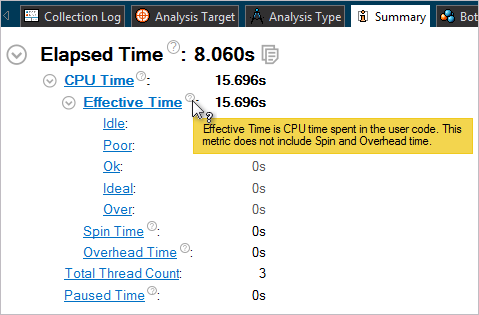
Use the Elapsed Time metric as your primary indicator and a baseline for comparison of results before and after optimization. Note that for multithreaded applications, the CPU Time is different from the Elapsed Time since the CPU Time is the sum of CPU time for all application threads.
Effective CPU Time and Wait Time metrics are classified per CPU utilization as follows:
Utilization Type |
Description |
|---|---|
Idle |
Idle usage. By default, if the CPU Time is insignificant (less than 50% of 1 CPU), such CPU usage is classified as idle. |
Poor |
Poor usage. By default, poor usage is when the number of simultaneously running CPUs is less than or equal to 50% of the target CPU usage. |
OK |
Acceptable (OK) usage. By default, OK usage is when the number of simultaneously running CPUs is between 51-85% of the target CPU usage. |
Ideal |
Ideal usage. By default, Ideal usage is when the number of simultaneously running CPUs is between 86-100% of the target CPU usage. |
Depending on the analysis type, the VTune Amplifier may analyze a metric, compare its value with the threshold value provided by Intel architects, and highlight the metric value in pink as a performance issue for an application as a whole. The issue description for such a value may be provided below the critical metric or when you hover over the highlighted metric.
Each metric in the list shows up as a hyperlink. Clicking a hyperlink opens the Bottom-up window and sorts the grid by the selected metric or highlights the selected object in the grid.
System Bandwidth
This section provides various system bandwidth-related properties detected by the product. Depending on the number of sockets on your system, the following types of system bandwidth are measured:
Max DRAM System Bandwidth |
Maximum DRAM bandwidth measured for the whole system (across all packages) by running a micro-benchmark before the collection starts. If the system has already been actively loaded at the moment of collection start (for example, with the attach mode), the value may be less accurate. |
Max DRAM Single-Package Bandwidth |
Maximum DRAM bandwidth for single package measured by running a micro-benchmark before the collection starts. If the system has already been actively loaded at the moment of collection start (for example, with the attach mode), the value may be less accurate. |
These values are used to define default High, Medium and Low bandwidth utilization thresholds for the Bandwidth Utilization Histogram and to scale overtime bandwidth graphs in the Bottom-up view. By default, for Memory Analysis results the system bandwidth is measured automatically. To enable this functionality for custom analysis results, make sure to select the Evaluate max DRAM bandwidth option.
Bandwidth Utilization Histogram
This histogram shows how much time the system bandwidth was utilized by a certain value (Bandwidth Domain) and provides thresholds to categorize bandwidth utilization as High, Medium and Low. You can set the threshold by moving sliders at the bottom.
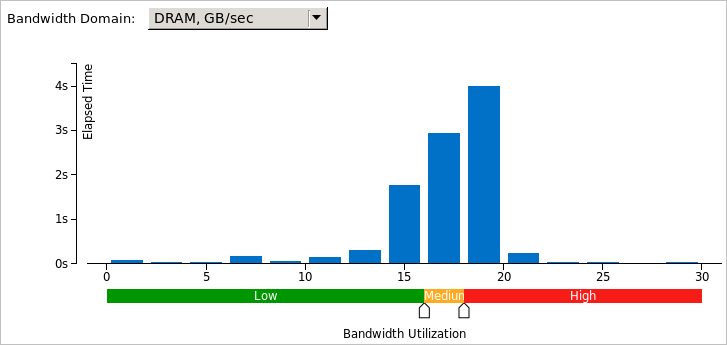
If you switch to the Bottom-up window and group the grid data by ../Bandwidth Utilization Type/.., you can identify functions or memory objects with high bandwidth utilization in the specific bandwidth domain.
If you select the QPI domain, you will be able to check whether the performance of your application is limited by the bandwidth of Intel QuickPath Interconnect (Intel QPI) links (inter-socket connections). Then, you may switch to the Bottom-up window and identify code and memory objects with NUMA issues.
Single-Package domains are displayed for the systems with two or more CPU packages and the histogram for them shows the distribution of the elapsed time per maximum bandwidth utilization among all packages. Use this data to identify situations where your application utilizes bandwidth only on a subset of CPU packages. In this case, the whole system bandwidth utilization represented by domains like DRAM may be low whereas the performance is in fact limited by bandwidth utilization.
Note
Intel QPI bandwidth analysis is supported by the VTune Amplifier for Intel microarchitecture code name Ivy Bridge EP and later.
To learn bandwidth capabilities, refer to your system specifications or run appropriate benchmarks to measure them; for example, Intel Memory Latency Checker can provide maximum achievable DRAM and QPI bandwidth.
Top Memory Objects by Latency (Linux* Targets Only)
If you enabled the Analyze memory object configuration option for the Memory Access analysis, the Summary window in the Memory Usage viewpoint displays memory objects (variables, data structures, arrays) that introduced the highest latency to the execution of your application.
Note
Memory objects identification is supported only for Linux targets and only for processors based on Intel microarchitecture code name Sandy Bridge and later.
Only metrics based on DLA-capable hardware events are applicable to the memory objects analysis. For example, the CPU Time metric is based on a non DLA-capable Clockticks event, so cannot be applied to memory objects. Examples of applicable metrics are Loads, Stores, LLC Miss Count, and Average Latency.
Clicking an object in the table opens the Bottom-up window with the grid data grouped by Memory Object/Function/Allocation Stack. The selected hotspot object is highlighted.
Top Tasks
This section provides a list of tasks that took most of the time to execute, where tasks are either code regions marked with Task API, or system tasks enabled to monitor Ftrace* events, Atrace* events, Intel Media SDK programs, OpenCL™ kernels, and so on.
Clicking a task type in the table opens the grid view (for example, Bottom-up or Event Count) grouped by the Task Type granularity. See Interpreting Task Analysis Data for more information.
Latency Histogram
This histogram shows a distribution of loads per latency (in cycles).
Collection and Platform Info
This section provides the following data:
Application Command Line |
Path to the target application. |
Operating System |
Operating system used for the collection. |
Computer Name |
Name of the computer used for the collection. |
Result Size |
Size of the result collected by the VTune Amplifier. |
Collection start time |
Start time (in UTC format) of the external collection. Explore the Timeline pane to track the performance statistics provided by the custom collector over time. |
Collection stop time |
Stop time (in UTC format) of the external collection. Explore the Timeline pane to track the performance statistics provided by the custom collector over time. |
CPU Information |
|
Name |
Name of the processor used for the collection. |
Frequency |
Frequency of the processor used for the collection. |
Logical CPU Count |
Logical CPU count for the machine used for the collection. |
Physical Core Count |
Number of physical cores on the system. |
User Name |
User launching the data collection. This field is available if you enabled the per-user event-based sampling collection mode during the product installation. |
GPU Information |
|
Name |
Name of the Graphics installed on the system. |
Vendor |
GPU vendor. |
Driver |
Version of the graphics driver installed on the system. |
Stepping |
Microprocessor version. |
EU Count |
Number of execution units (EUs) in the Render and GPGPU engine. This data is Intel® HD Graphics and Intel® Iris™ Graphics (further: Intel Graphics) specific. |
Max EU Thread Count |
Maximum number of threads per execution unit. This data is Intel Graphics specific. |
Max Core Frequency |
Maximum frequency of the Graphics processor. This data is Intel Graphics specific. |
Graphics Performance Analysis |
GPU metrics collection is enabled on the hardware level. This data is Intel Graphics specific. NoteSome systems disable collection of extended metrics such as L3 misses, memory accesses, sampler busyness, SLM accesses, and others in the BIOS. On some systems you can set a BIOS option to enable this collection. The presence or absence of the option and its name are BIOS vendor specific. Look for the Intel® Graphics Performance Analyzers option (or similar) in your BIOS and set it to Enabled. |