Contents
Step 2: Configure and Run Analysis

Intel® VTune™ Amplifier can be installed on Windows*, macOS*, and Linux* platforms and used for analysis of local and remote target systems. Use this tool to analyze the algorithm choices, find serial and parallel code bottlenecks, understand where and how your application can benefit from available hardware resources, and speed up the execution.
Build your application with symbol information and in Release mode with all optimizations enabled. For detailed information on compiler settings, see the VTune Amplifier online user guide.
If you do not have your own application, a sample application is installed with the product in /home/<user>/intel/amplxe/sample/matrix and a sample project is available from /home/<user>/intel/amplxe/projects/sample (matrix). The examples here use the matrix sample application.
Start the VTune Amplifier.
For VTune Amplifier installed standalone, installed with Intel Parallel Studio, or installed with Intel Media Studio
Set up the environment variables:
csh/tcsh users: source <install_dir>/amplxe-vars.csh
bash users: source <install_dir>/amplxe-vars.sh
By default, the <install_dir> is:
/opt/intel/vtune_amplifier_2019 when installed with root permissions
$HOME/intel/vtune_amplifier_2019 when installed with user permissions
Launch the VTune Amplifier:
For standalone GUI interface, run the amplxe-gui command.
For command line interface, run the amplxe-cl command.
For VTune Amplifier installed with Intel System Studio
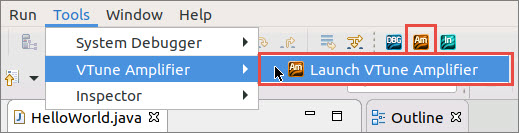
From within the Intel System Studio IDE, select Tools > VTune Amplifier > Launch VTune Amplifier. Launching from within Intel System Studio sets all appropriate environment variables before opening the tool.
Click the
 menu button in the upper right corner and select
New > Project... .
menu button in the upper right corner and select
New > Project... .
Specify the project name and location in the Create Project dialog box.
Click Create Project.
After creating a new project, the Configure Analysis window opens with default values of Local Host as the target system, Launch Application as the analysis target, and Hotspots as the analysis type. This is a good starting point for your first analysis.
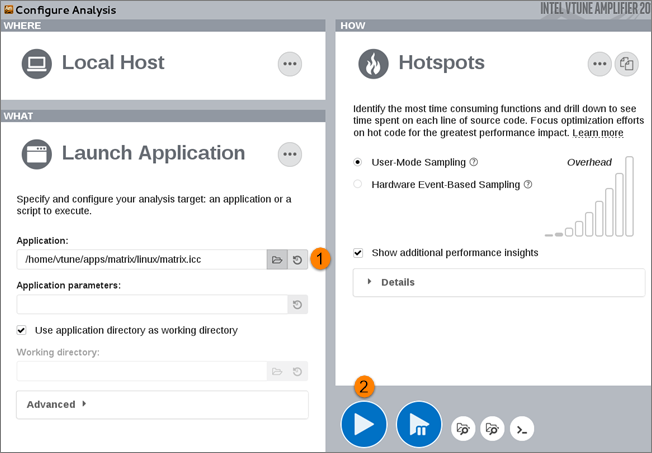
In the Launch Application section, browse to the location of your application.
Click the start button to launch the application and begin collecting data.
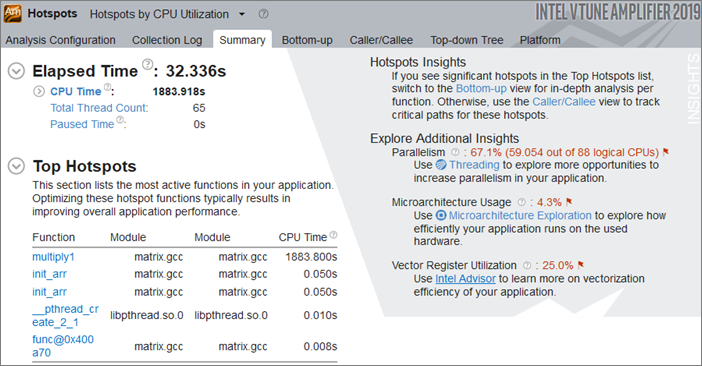
When data collection completes, VTune Amplifier finalizes and opens the result. Start your analysis with the Summary window to get an overview of the application performance and then switch to other windows to explore the performance deeper at the granularity of function, source line, and so on. The Insights pane provides performance improvement opportunities.
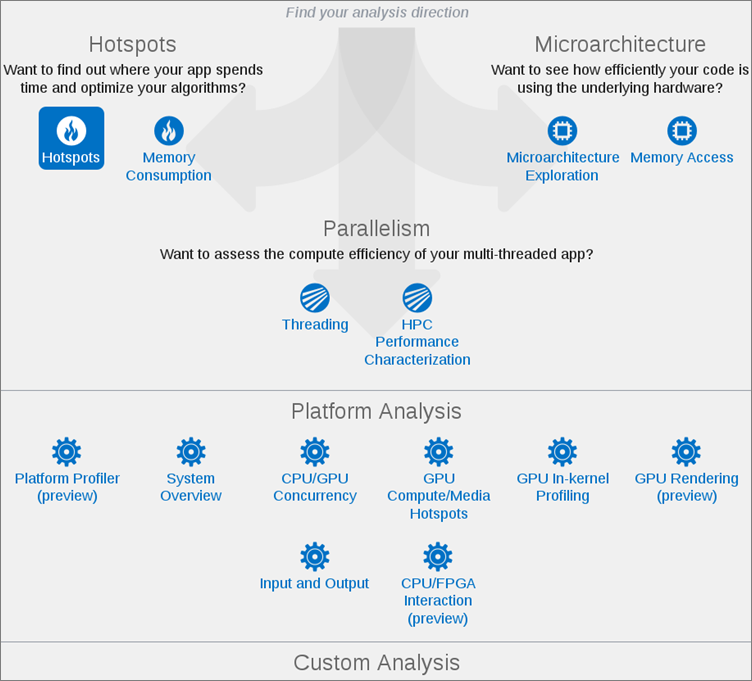
Use one of the other VTune Amplifier analysis types to collect performance metrics for your system or application. Click the
 Browse button in the
HOW pane to view other analysis types.
Browse button in the
HOW pane to view other analysis types.
Open the Matrix project and associated result file to explore common performance issues. If it isn't already available in the Project Navigator, open the project from the /home/<user>/intel/amplxe/projects/sample (matrix) directory.
Use the Matrix Multiply sample application and the associated VTune Amplifier tutorial to walk through common performance issues and their solutions.
Document |
Description |
|---|---|
The online training site is an excellent resource for learning VTune Amplifier basics with Getting Started guides, videos, tutorials, webinars, and technical articles. |
|
VTune Amplifier tutorials guide a new user through basic features with a short sample application. |
|
Performance analysis cookbook that contains recipes identifying and solving the most popular performance problems with the help of VTune Amplifier's analysis types. |
|
The Release Notes document contains the most up-to-date information about the product, including a system requirements, product description, technical support, and known limitations and issues. |
|
The Installation Guide contains basic installation instructions for VTune Amplifier and post-installation configuration instructions for the various drivers and collectors. |
|
The User Guide is the primary documentation for the VTune Amplifier. Note:
You can also download an offline version of all product documentation for Intel® Parallel Studio XE or Intel® System Studio. |
Intel, the Intel logo, Intel Atom, Intel Core, Intel Xeon Phi, VTune and Xeon are trademarks of Intel Corporation in the U.S. and/or other countries.
*Other names and brands may be claimed as the property of others.
Microsoft, Windows, and the Windows logo are trademarks, or registered trademarks of Microsoft Corporation in the United States and/or other countries.
OpenCL and the OpenCL logo are trademarks of Apple Inc. used by permission by Khronos.
Copyright 2015-2018 Intel Corporation
This software and the related documents are Intel copyrighted materials, and your use of them is governed by the express license under which they were provided to you (License). Unless the License provides otherwise, you may not use, modify, copy, publish, distribute, disclose or transmit this software or the related documents without Intel's prior written permission.
This software and the related documents are provided as is, with no express or implied warranties, other than those that are expressly stated in the License.