Contents
Discover Where Vectorization Will Pay Off the Most
Identify Performance Bottlenecks Using Roofline
Visualize Intel Advisor Results on macOS* Machines


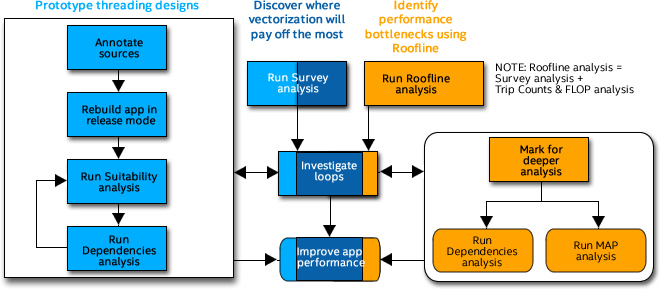
Intel® Advisor is composed of the following tools to help ensure your Fortran, C and C++ applications realize full performance potential on modern processors, such as Intel® Xeon® and Intel® Xeon Phi™ processors:
Vectorization Advisor is a vectorization optimization tool that lets you identify high-impact, under-optimized loops, what is blocking vectorization, and where it is safe to force vectorization. It also provides code-specific how-can-I-fix-this-issue? recommendations.
Threading Advisor is a fast-track threading design and prototyping tool that lets you analyze, design, tune, and check threading design options without disrupting your normal development.
Flow Graph Analyzer is a visual prototyping tool that lets you represent and analyze performance for applications that use the Intel® Threading Building Blocks (Intel® TBB) flow graph interfaces.
This document summarizes typical Vectorization Advisor and Threading Advisor workflows to get started using the Intel Advisor. For typical Flow Graph Analyzer workflows, see the Flow Graph Analyzer User Guide.
GUI: Discover where vectorization - or better vectorization - will pay off the most.
Vectorization Advisor tool. Low runtime overhead. Offers integrated compiler report data and performance data in one place - possibly enough to help you make code improvement decisions, and definitely enough to help you decide if you need to dig deeper.
GUI: Identify performance bottlenecks using Roofline, a chart-based analysis that visualizes actual application performance against hardware-imposed performance limits.
Vectorization Advisor tool. High runtime overhead. Provides an ideal roadmap of potential optimization steps by helping you identify the main limiting factor: memory bandwidth or compute capacity.
GUI: Prototype threading design options.
Threading Advisor tool. Medium to high runtime overhead. Provides what-if modeling with corresponding prediction of parallel data sharing problems.
CLI/MPI/GUI: Visualize Intel Advisor results on macOS* machines.
Vectorization Advisor and Threading Advisor tools. Lets you collect data on a remote machine with limited capabilities for visualization and data manipulation, such as a cluster; then view the resulting data in the Intel Advisor GUI on a macOS* machine.
CLI/MPI: Automate Intel Advisor workflows.
Vectorization Advisor and Threading Advisor tools.
Before you begin with the Intel Advisor:
Build an optimized binary of your application in release mode using settings designed to produce the most accurate and complete analysis results.
Verify the resulting executable runs before trying to analyze it with the Intel Advisor.
To Do This |
For This Tool |
Optimal C/C++ Settings |
|---|---|---|
Request full debug information (compiler and linker). |
Vectorization Advisor Threading Advisor |
Linux* OS command line: -g Windows* OS command line:
Microsoft Visual Studio* IDE:
|
Request moderate optimization. |
Vectorization Advisor Threading Advisor |
Linux* OS command line: -O2 or higher Windows* OS command line:
Visual Studio* IDE:
|
Produce compiler diagnostics (necessary for version 15.0 of the Intel compiler; unnecessary for version 16.0 and higher). |
Vectorization Advisor only |
Linux* OS command line: -qopt-report=5 Windows* OS command line: /Qopt-report:5 Visual Studio* IDE: C/C++ > Diagnostics [Intel C++] > Optimization Diagnostic Level > Level 5 (/Qopt-report:5) |
Enable vectorization. |
Vectorization Advisor only |
Linux* OS command line: -vec Windows* OS command line: /Qvec |
Enable SIMD directives. |
Vectorization Advisor only |
Linux command line: -simd Windows* OS command line: /Qsimd |
Enable generation of multi-threaded code based on OpenMP* directives. |
Vectorization Advisor only |
Linux* OS command line: -qopenmp Windows* OS command line: /Qopenmp Visual Studio* IDE: C/C++ > Language [Intel C++] > OpenMP Support > Generate Parallel Code (/Qopenmp) |
Search additional directory related to Intel Advisor annotation definitions. |
Primarily Threading Advisor, but could also be useful for Vectorization Advisor refinement analyses |
Linux* OS command line: - I${ADVISOR_[product_year]_DIR}/include Windows* OS command line: /I"%ADVISOR_[product_year]_DIR%"\include Visual Studio* IDE: C/C++ > General > Additional Include Directories > $(ADVISOR_[product_year]_DIR)\include;%(AdditionalIncludeDirectories) |
Search for unresolved references in multithreaded, dynamically linked libraries. |
Threading Advisor only |
Linux* OS command line: -Bdynamic Windows* OS command line: /MD or /MDd Visual Studio* IDE: C/C++ > Code Generation > Runtime Library > Mutithread |
Enable dynamic loading. |
Threading Advisor only |
Linux* OS command line: -ldl |
To Do This |
For This Tool |
Optimal Fortran Settings |
Request full debug information (compiler and linker). |
Vectorization Advisor Threading Advisor |
Linux* OS command line: -g Windows* OS command line:
Visual Studio* IDE:
|
Request moderate optimization. |
Vectorization Advisor Threading Advisor |
Linux* OS command line: -O2 or higher Windows* OS command line:
Visual Studio* IDE:
|
Produce compiler diagnostics (necessary for version 15.0 of the Intel compiler; unnecessary for version 16.0 and higher). |
Vectorization Advisor only |
Linux* OS command line: -qopt-report=5 Windows* OS command line: /Qopt-report:5 Visual Studio* IDE: Fortran > Diagnostics > Optimization Diagnostic Level > Level 5 (/Qopt-report:5) |
Enable vectorization. |
Vectorization Advisor only |
Linux* OS command line: -vec Windows* OS command line: /Qvec |
Enable SIMD directives. |
Vectorization Advisor only |
Linux* OS command line: -simd Windows* OS command line: /Qsimd |
Enable generation of multi-threaded code based on OpenMP* directives. |
Vectorization Advisor only |
Linux* OS command line: -qopenmp Visual Studio* IDE: Fortran > Language > Process OpenMP Directives > Generate Parallel Code (/Qopenmp) |
Search additional directory related to Intel Advisor annotation definitions. |
Primarily Threading Advisor, but could also be useful for Vectorization Advisor refinement analyses |
Linux* OS command line:
Windows* OS command line:
Visual Studio* IDE:
|
Search for unresolved references in multithreaded, dynamically linked libraries. |
Threading Advisor only |
Linux* OS command line: -shared-intel Windows* OS command line: /MD or /MDd Visual Studio* IDE: Fortran > Libraries > Runtime Librarary > Multithread DLL (/libs:dll /threads) or Debug Multithread DLL (/libs:dll /threads /dbglibs) |
Enable dynamic loading. |
Threading Advisor only |
Linux* OS command line: -ldl |
This section shows how to get started using only the Intel Advisor Survey analysis. The main advantage of using this single-analysis Vectorization Advisor workflow is low runtime overhead. The main disadvantage is it may not provide enough data to help you make improvement decisions; you may need to dig deeper using another workflow.
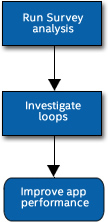
Survey Report - Offers integrated compiler report data and performance data that shows where vectorization will pay off the most; if vectorized loops are providing benefit, and if not, why not; un-vectorized loops and why they are not vectorized; and performance problems in general.
Environment |
Set-Up Tasks |
|---|---|
Intel® Parallel Studio XE/Linux* OS |
|
Intel Parallel Studio XE/Windows* OS |
Note:
Setting up the Windows* OS environment is necessary only if you plan to use the advixe-cl command to run the command line interface, or choose to use the advixe-gui command to launch the Intel Advisor standalone GUI instead of using available GUI or IDE launch options. Do one of the following:
|
Intel® System Studio |
Note:
Setting up the environment is necessary only if you plan to use the advixe-cl command to run the command line interface, or choose to use the advixe-gui command to launch the Intel Advisor standalone GUI instead of using available GUI or IDE launch options. Run the <advisor-install-dir>\advixe-vars.bat command to set up your environment. The default installation path, <advisor-install-dir>, is below C:\Program Files (x86)\IntelSWTools\ (on certain systems, instead of Program Files (x86), the directory name is Program Files ). |
To launch the:
Intel Parallel Studio XE/Intel Advisor standalone GUI:
In the Linux* OS: Run the advixe-gui command.
In the Windows* OS: From the Microsoft Windows* All Apps screen, select Intel Parallel Studio XE 201n > Intel Advisor 201n
Intel System Studio/Intel Advisor standalone GUI: Choose Tools > Intel Advisor > Launch > Intel Advisor from the IDE menu.
Intel Advisor plug-in to the Visual Studio* IDE: Open your solution in the Visual Studio* IDE.
To create an Intel Advisor project:
Do one of the following
In the standalone GUI: Choose File > New > Project… to open the Create a Project dialog box. Supply a name and location for your project, then click the Create Project button to open the Project Properties dialog box.
In the Visual Studio* IDE: Choose Project > Intel Advisor 201n Project Properties... to open the Project Properties dialog box.
On the left side of the Analysis Target tab, ensure the Survey Hotspots Analysis type is selected, then set appropriate parameters. (Setting the binary/symbol search and source search directories is optional for the Vectorization Advisor.)
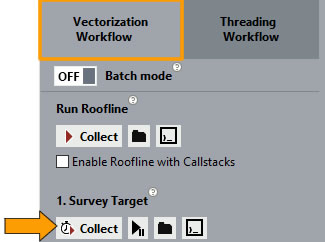
Under
Survey Target in the
Vectorization Workflow, click the
 control to collect Survey data while your application executes. Upon completion the
Intel Advisor displays a
Survey Report similar to the following.
control to collect Survey data while your application executes. Upon completion the
Intel Advisor displays a
Survey Report similar to the following.
If the
Workflow is not displayed in the Visual Studio IDE: Click the
 icon on the
Intel Advisor toolbar.
icon on the
Intel Advisor toolbar.
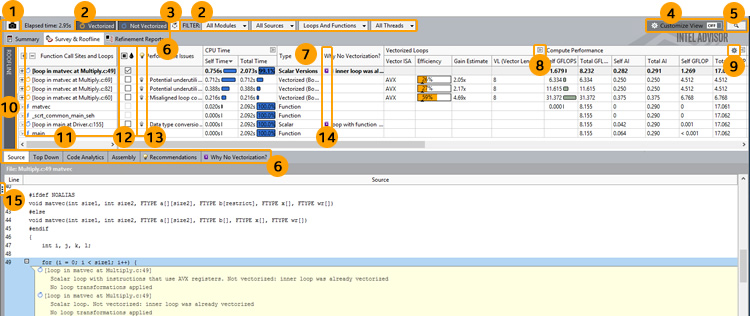
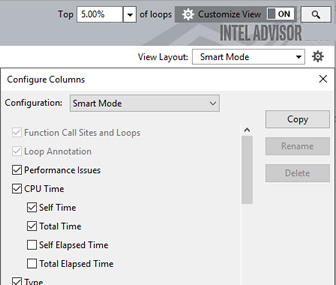
There are many controls available to help you focus on the data most important to you, including the following:
If all loops are vectorizing properly and performance is satisfactory, you are done! Congratulations!
If one or more loops is not vectorizing properly and performance is unsatisfactory:
Improve application performance using various Intel Advisor features to guide your efforts, such as:
Information in the
 Performance Issues column and associated
Recommendations tab
Performance Issues column and associated
Recommendations tab
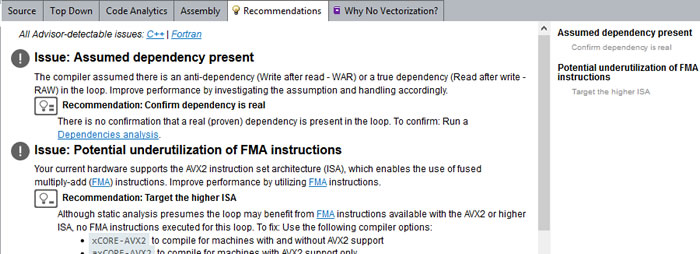
Suggestions in Next Steps: After Running Survey Analysis in the Intel Advisor User Guide
Optional Dependencies and Memory Access Patterns (MAP) analyses to help you dig deeper
Rebuild your modified code.
Run another Survey analysis to verify all loops are vectorizing properly and performance is satisfactory.
This section shows how to get started using all Vectorization Advisor analyses, starting with the Roofline analysis. The main advantage of using this multi-analysis Vectorization Advisor workflow is the potential to generate an ideal roadmap of optimization steps. The main disadvantage is high runtime overhead. For example:
Roofline analysis runtime overhead can be 3x - 8x greater than native target application runtime.
Memory Access Patterns (MAP) analysis runtime overhead can be 5x - 20x greater.
Dependencies analysis runtime can be 5x - 100x greater.
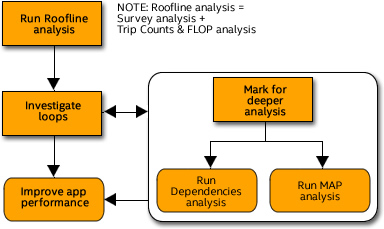
Roofline analysis - Helps visualize actual performance against hardware-imposed performance ceilings, as well as determine the main limiting factor (memory bandwidth or compute capacity). When you run a Roofline analysis, the Intel Advisor:
Measures the hardware limitations of your machine and collects loop/function timings using the Survey analysis.
Collects floating-point and integer operations data, and memory data using the Trip Counts and FLOP analysis.
Dependencies analysis - Checks for real data dependencies in loops the compiler did not vectorize because of assumed dependencies.
Memory Access Patterns (MAP) analysis - Checks for various memory issues, such as non-contiguous memory accesses and unit stride vs. non-unit stride accesses.
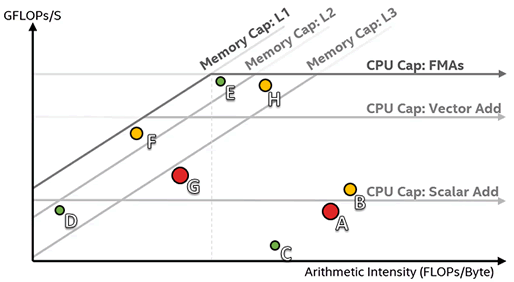
The Roofline chart plots an application's achieved performance and arithmetic intensity against the machine's maximum achievable performance:
Arithmetic intensity (x axis) - measured in number of floating-point operations (FLOPs) and/or integer operations (INTOPs) per byte, based on the loop/function algorithm, transferred between CPU/VPU and memory
Performance (y axis) - measured in billions of floating-point operations per second (GFLOPS) and/or billions of integer operations per second (GINTOPS)
In general:
The size and color of each Roofline chart dot represent relative execution time for each loop/function. Large red dots take the most time, so are the best candidates for optimization. Small green dots take less time, so may not be worth optimizing.
Roofline chart diagonal lines indicate memory bandwidth limitations preventing loops/functions from achieving better performance without some form of optimization. For example: The L1 Bandwidth roofline represents the maximum amount of work that can get done at a given arithmetic intensity if the loop always hits L1 cache. A loop does not benefit from L1 cache speed if a dataset causes it to miss L1 cache too often, and instead is subject to the limitations of the lower-speed L2 cache it is hitting. So a dot representing a loop that misses L1 cache too often but hits L2 cache is positioned somewhere below the L2 Bandwidth roofline.
Roofline chart horizontal lines indicate compute capacity limitations preventing loops/functions from achieving better performance without some form of optimization. For example: The Scalar Add Peak represents the peak number of add instructions that can be performed by the scalar loop under these circumstances. The Vector Add Peak represents the peak number of add instructions that can be performed by the vectorized loop under these circumstances. So a dot representing a loop that is not vectorized is positioned somewhere below the Scalar Add Peak roofline.
A dot cannot exceed the topmost rooflines, as these represent the maximum capabilities of the machine; however, not all loops can utilize maximum machine capabilities.
The greater the distance between a dot and the highest achievable roofline, the more opportunity exists for performance improvement.
In the following
Roofline chart representation, loops A and G (large red dots), and to a lesser extent B (yellow dot far below the roofs), are the best candidates for optimization. Loops C, D, and E (small green dots) and H (yellow dot) are poor candidates because they do not have much room to improve or are too small to have significant impact on performance.
The Intel Advisor basic roofline model, the Cache-Aware Roofline Model (CARM), offers self data capability. The Intel Advisor Roofline with Callstacks feature extends the basic model with total data capability:
Self data = Memory access, FLOPs, and duration related only to the loop/function itself and excludes data originating in other loops/functions called by it
Total data = Data from the loop/function itself and its inner loops/functions
The total-data capability in the Roofline with Callstacks feature can help you:
Investigate the source of loops/functions instead of just the loops/functions themselves.
Get a more accurate view of loops/functions that behave differently when called under different circumstances.
Uncover design inefficiencies higher up the call chain that could be the root cause of poor performance by smaller loops/functions.
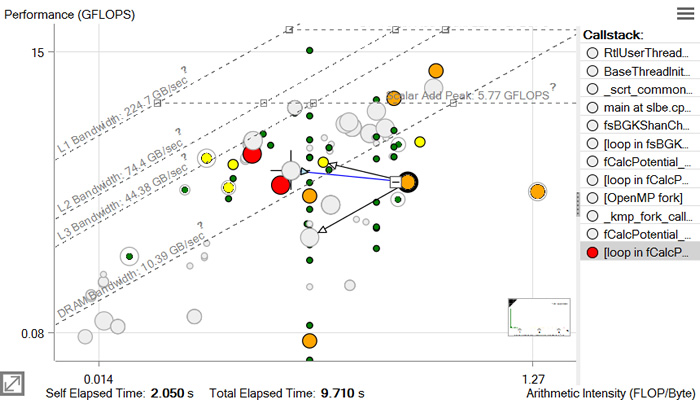
The following Roofline chart representation shows some of the added benefits of the Roofline with Callstacks feature, including:
A navigable, color-coded Callstack pane that shows the entire call chain for the selected loop/function, but excludes its callees
Visual indicators (caller and callee arrows) that show the relationship among loops and functions
The ability to simplify dot-heavy charts by collapsing several small loops into one overall representation
Loops/functions with no self data are grayed out when expanded and in color when collapsed. Loops/functions with self data display at the coordinates, size, and color appropriate to the data when expanded, but have a gray halo of the size associated with their total time. When such loops/functions are collapsed, they change to the size and color appropriate to their total time and, if applicable, move to reflect the total performance and total arithmetic intensity.
For more information on how to produce, display, and interpret the Roofline with Callstacks extension to the Roofline chart, see Roofline with Callstacks.
There are several controls to help you show/hide the
Roofline chart:
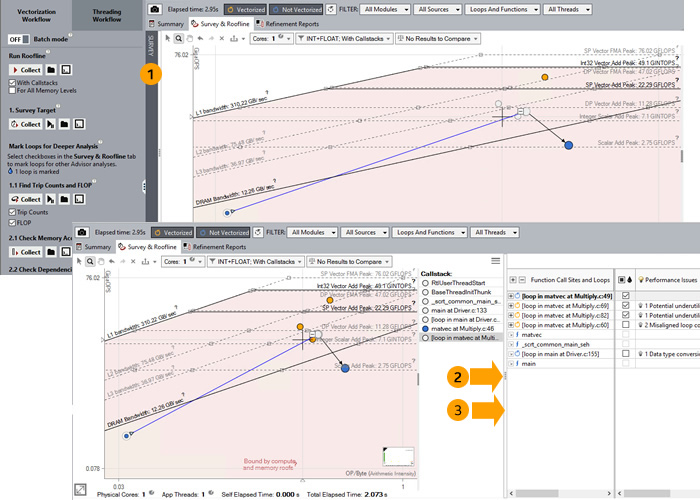
1 |
Click to toggle between Roofline chart view and Survey Report view. |
2 |
Click to toggle to and from side-by-side Roofline chart and Survey Report view. |
3 |
Drag to adjust the dimensions of the Roofline chart and Survey Report. |
There are several controls to help you focus on the
Roofline chart data most important to you, including the following.
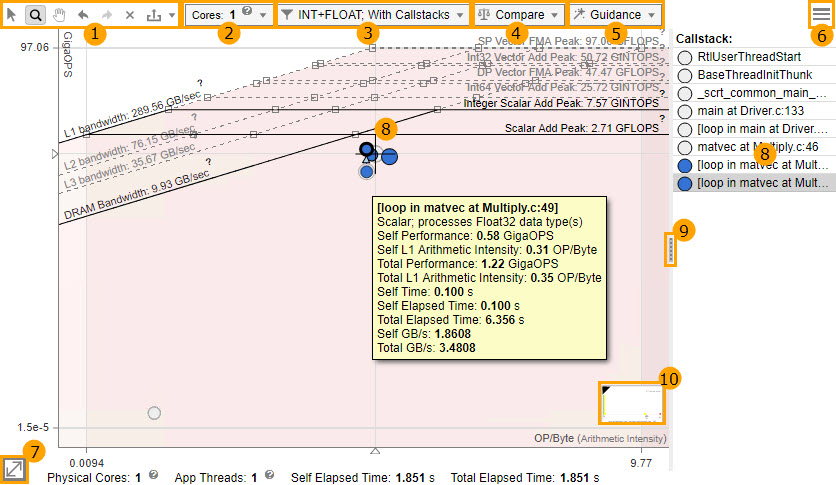
1 |
|
|
2 |
Use the Cores drop-down toolbar to:
Choose the appropriate number of CPU cores to scale roof values up or down:
By default, the number of cores is set to the number of threads used by the application (even values only). You’ll see the following options if your code is running on a multisocket PC:
|
|
3 |
Select the Memory Level(s) to show for each loop/function in the chart (CARM, L2, L3, DRAM). Selected levels are displayed as additional labeled dots on the chart. This control requires that you set the environment variable ADVIXE_EXPERIMENTAL to int_roofline. Also be sure to enable the For All Memory Levels checkbox under Run Roofline in the Vectorization Workflow tab. |
|
4 |
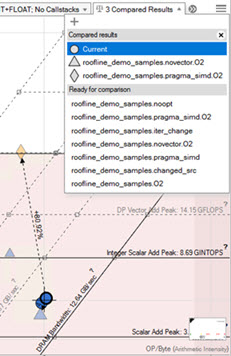
Display Roofline chart data from other Intel Advisor results or non-archived snapshots for comparison purposes. Use the drop-down toolbar to:
Click a loop/function dot in the current result to show the relationship (arrowed lines) between it and the corresponding loop/function dots in loaded results/snapshots. |
|
5 |
Add visual indicators to the Roofline chart to make the interpretation of data easier, including performance limits and whether loops/functions are memory bound, compute bound, or both. Use the drop-down toolbar to:
The preview picture is updated as you select guidance options, allowing you to see how changes will affect the Roofline chart’s appearance. Click Apply to apply your changes, or Default to return the Roofline chart to its original appearance. |
|
6 |
You can save your Roofs Settings or Point Weight Representation configuration to a JSON file or load a custom configuration. |
|
7 |
Zoom in and out using numerical values. |
|
8 |
Hover your mouse over an item to display metrics for it. Click a loop/function dot to:
You can also click an item in the Callstack pane to flash the corresponding loop/function dot in the Roofline chart. If Roofline with Callstacks is enabled, click a loop/function dot
Right-click a loop/function dot or a blank area in the Roofline chart to perform more functions, such as:
|
|
9 |
If Roofline with Callstacks is enabled, show/hide the Callstack pane. |
|
10 |
Display the number and percentage of loops in each loop weight representation category. |
|
Environment |
Set-Up Tasks |
|---|---|
Intel® Parallel Studio XE/Linux* OS |
|
Intel Parallel Studio XE/Windows* OS |
Note:
Setting up the Windows* OS environment is necessary only if you plan to use the advixe-cl command to run the command line interface, or choose to use the advixe-gui command to launch the Intel Advisor standalone GUI instead of using available GUI or IDE launch options. Do one of the following:
|
Intel® System Studio |
Note:
Setting up the environment is necessary only if you plan to use the advixe-cl command to run the command line interface, or choose to use the advixe-gui command to launch the Intel Advisor standalone GUI instead of using available GUI or IDE launch options. Run the <advisor-install-dir>\advixe-vars.bat command to set up your environment. The default installation path, <advisor-install-dir>, is below C:\Program Files (x86)\IntelSWTools\ (on certain systems, instead of Program Files (x86), the directory name is Program Files ). |
To launch the:
Intel Parallel Studio XE/Intel Advisor standalone GUI:
In the Linux* OS: Run the advixe-gui command.
In the Windows* OS: From the Microsoft Windows* All Apps screen, select Intel Parallel Studio XE 201n > Intel Advisor 201n
Intel System Studio/Intel Advisor standalone GUI: Choose Tools > Intel Advisor > Launch > Intel Advisor from the IDE menu.
Intel Advisor plug-in to the Visual Studio* IDE: Open your solution in the Visual Studio* IDE.
To create an Intel Advisor project:
Do one of the following
In the standalone GUI: Choose File > New > Project… to open the Create a Project dialog box. Supply a name and location for your project, then click the Create Project button to open the Project Properties dialog box.
In the Visual Studio* IDE: Choose Project > Intel Advisor 201n Project Properties... to open the Project Properties dialog box.
On the left side of the Analysis Target tab, ensure the Survey Hotspots Analysis type is selected and set appropriate parameters.
Set appropriate parameters for other analysis types and tabs. (Setting the binary/symbol search and source search directories is optional for the Vectorization Advisor.)
If possible, use the Inherit settings from Survey Hotspots Analysis Type checkbox for other analysis types.
The Trip Counts and FLOP Analysis type has similar parameters to the Survey Hotspots Analysis type.
The Dependencies Analysis and Memory Access Patterns Analysis types consume more resources than the Survey Hotspots Analysis type. If these Refinement analyses take too long, consider decreasing the workload.
Select Track stack variables in the Dependencies Analysis type to detect all possible dependencies.
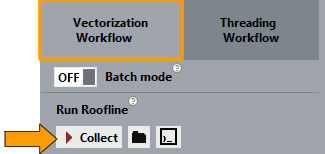
Under
Run Roofline in the
Vectorization Workflow, click the
 control to execute your target application. Upon completion, the
Intel Advisor displays a
Roofline chart.
control to execute your target application. Upon completion, the
Intel Advisor displays a
Roofline chart.
To implement the Roofline with Callstacks feature:
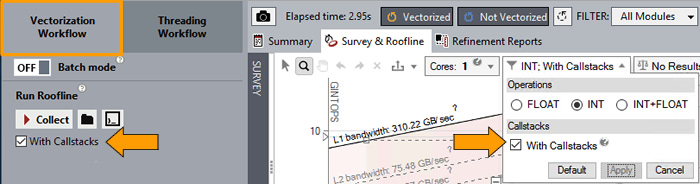
Run the Roofline analysis with the With Callstacks checkbox enabled. Upon completion, the Intel Advisor displays a Roofline chart.
Enable the With Callstacks checkbox in the Roofline chart.
If the
Workflow is not displayed in the Visual Studio IDE: Click the
icon on the
Intel Advisor toolbar.
If all loops are vectorizing properly and performance is satisfactory, you are done! Congratulations!
If one or more loops is not vectorizing properly and performance is unsatisfactory:
Check data in associated Intel Advisor views to support your Roofline chart interpretation. For example: Check the Vectorized Loops/Efficiency values in the Survey Report or the data in the Code Analytics tab.
Improve application performance using various Intel Advisor features to guide your efforts, such as:
Information in the
Performance Issues column and associated
Recommendations tab
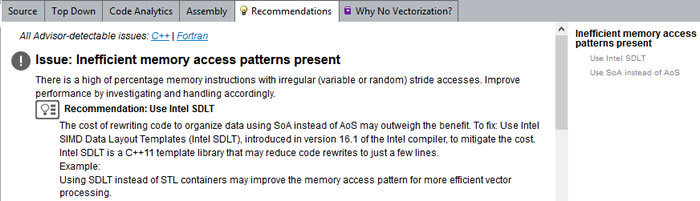
Table of contents on right, showing recommendations for each issue relevant to the loop. Expandable/collapsible recommendations on left (some reference details specific to the analyzed loop, such as vector length or trip count). Number of bars on recommendation icon shows confidence this recommendation is the appropriate fix.
Information in the
 Why No Vectorization? column and associated
Why No Vectorization? tab
Why No Vectorization? column and associated
Why No Vectorization? tab
Suggestions in Next Steps: After Running Survey Analysis in the Intel Advisor User Guide
If you need more information, continue your investigation by:
To run a Dependencies analysis:
Mark one or more un-vectorized loops for deeper analysis in the
 column in the
Survey Report.
column in the
Survey Report.
Under
Check Dependencies in the
Vectorization Workflow, click the
 control to collect Dependencies data while your application executes.
After the Intel Advisor collects the data, it displays a Dependencies-focused Refinement Report similar to the following:
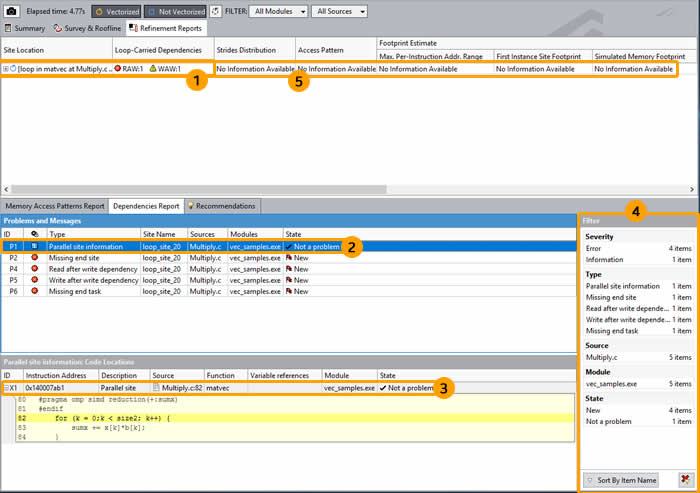
There are many controls available to help you focus on the data most important to you, including the following:
1 |
To display more information in the Dependencies Report about a loop you selected for deeper analysis: Click the associated data row. |
2 |
To display instruction addresses and code snippets for associated code locations in the Code Locations pane: Click a data row. To choose a problem of interest to display in the Dependencies Source window: Right click a data row, then choose View Source. To open your default editor in another tab/window: Right-click a data row, then choose Edit Source to open an editor tab. |
3 |
To choose a code location of interest to display in the Dependencies Source window: Right-click a data row, then choose View Source. To open your default editor in another tab/window: Right-click a data row, then choose Edit Source to open an editor tab. |
4 |
Use the Filter pane to:
|
5 |
To populate these columns and the Memory Access Patterns Report with data, run a Memory Access Patterns analysis. |
If the Dependencies Report shows:
There is no real dependency in the loop for the given workload, follow Intel Advisor guidance to tell the compiler it is safe to vectorize.
There is an anti-dependency (often called a Write after read dependency or WAR), follow Intel Advisor guidance to enable vectorization.
Intel Advisor code improvement guidance is available in the
Recommendations tab and
Next Steps: After Running Survey Analysis in the
Intel Advisor User Guide. After you finish improving your code:
Run a Memory Access Patterns (MAP) analysis if desired.
Rebuild your modified code.
Run another Roofline analysis to verify your application still runs correctly and all test cases pass, all loops are vectorizing properly, and performance is satisfactory.
To run a Memory Access Patterns (MAP) analysis:
Mark one or more un-vectorized loops for deeper analysis in the
column in the
Survey Report.
Under
Check Memory Access Patterns in the
Vectorization Workflow, click the
 control to collect MAP data while your application executes.
After the Intel Advisor collects the data, it displays a MAP-focused Refinement Report similar to the following:
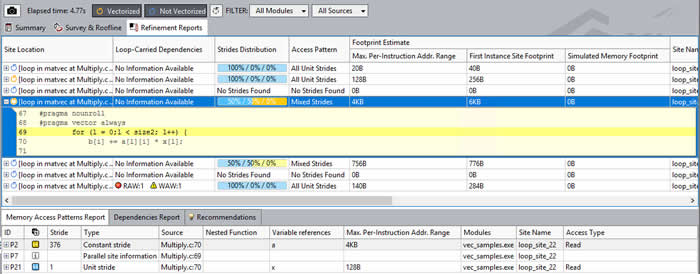
Intel Advisor code improvement guidance is available in the
Recommendations tab and
Next Steps: After Running Survey Analysis in the
Intel Advisor User Guide. After you finish improving your code:
Rebuild your modified code.
Run another Roofline analysis to verify your application still runs correctly and all test cases pass, all loops are vectorizing properly, and performance is satisfactory.
This section shows how to get started using the Threading Advisor. The main advantage of using this multi-analysis Threading Advisor workflow is the potential for what-if modeling with corresponding prediction of data sharing issues. The main disadvantage is medium to high runtime overhead.
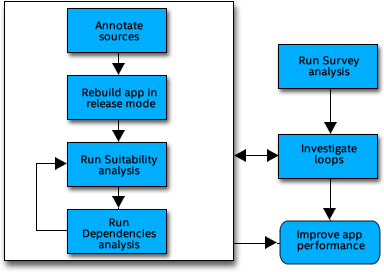
Survey analysis - Shows the loops and functions where your application spends the most time. Use this information to discover candidates for parallelization with threads.
Annotations - Annotations are subroutine calls or macros (depending on the programming language) you insert to mark places in your application that are good candidates for later replacement with parallel framework code that enables threading parallel execution. Annotations can be processed by your current compiler but do not change the computations of your application.
Suitability analysis - Predicts the maximum speedup of your application based on the inserted annotations and a variety of what-if modeling parameters with which you can experiment. Use this information to choose the best candidates for parallelization with threads.
Dependencies analysis - Predicts parallel data sharing problems based on the inserted annotations. Use this information to fix the data sharing problems if the predicted maximum speedup benefit justifies the effort.
Environment |
Set-Up Tasks |
|---|---|
Intel® Parallel Studio XE/Linux* OS |
|
Intel Parallel Studio XE/Windows* OS |
Note:
Setting up the Windows* OS environment is necessary only if you plan to use the advixe-cl command to run the command line interface, or choose to use the advixe-gui command to launch the Intel Advisor standalone GUI instead of using available GUI or IDE launch options. Do one of the following:
|
Intel® System Studio |
Note:
Setting up the environment is necessary only if you plan to use the advixe-cl command to run the command line interface, or choose to use the advixe-gui command to launch the Intel Advisor standalone GUI instead of using available GUI or IDE launch options. Run the <advisor-install-dir>\advixe-vars.bat command to set up your environment. The default installation path, <advisor-install-dir>, is below C:\Program Files (x86)\IntelSWTools\ (on certain systems, instead of Program Files (x86), the directory name is Program Files ). |
To launch the:
Intel Parallel Studio XE/Intel Advisor standalone GUI:
In the Linux* OS: Run the advixe-gui command.
In the Windows* OS: From the Microsoft Windows* All Apps screen, select Intel Parallel Studio XE 201n > Intel Advisor 201n
Intel System Studio/Intel Advisor standalone GUI: Choose Tools > Intel Advisor > Launch > Intel Advisor from the IDE menu.
Intel Advisor plug-in to the Visual Studio* IDE: Open your solution in the Visual Studio* IDE.
To create an Intel Advisor project:
Do one of the following
In the standalone GUI: Choose File > New > Project… to open the Create a Project dialog box. Supply a name and location for your project, then click the Create Project button to open the Project Properties dialog box.
In the Visual Studio* IDE: Choose Project > Intel Advisor 201n Project Properties... to open the Project Properties dialog box.
On the left side of the Analysis Target tab, ensure the Survey Hotspots Analysis type is selected and set appropriate parameters.
Set appropriate parameters for other analysis types and tabs. (Setting the binary/symbol search and source search directories is required for the Threading Advisor.)
If possible, use the Inherit settings from Survey Hotspots Analysis Type checkbox for other analysis types.
The Dependencies Analysis type consumes more resources than the Survey Hotspots Analysis type. If this analysis takes too long, consider decreasing the workload.
Select Track stack variables in the Dependencies Analysis type to detect all possible dependencies.
Under
Survey Target in the
Threading Workflow, click the
control to collect Survey data while your application executes. Use the resulting information to discover candidates for parallelization with threads.
If the
Workflow is not displayed in the Visual Studio IDE: Click the
icon on the
Intel Advisor toolbar.
Pay particular attention to the hottest loops in terms of Self Time and Total Time. Optimizing these loops provides the most benefit. Outermost loops with significant Total Time are often good candidates for parallelization with threads. Innermost loops and loops near innermost loops are often good candidates for vectorization.
Insert annotations to mark places in parts of your application that are good candidates for later replacement with parallel framework code that enables parallel execution.
The main types of Intel Advisor annotations mark the location of:
A parallel site. A parallel site is a region of code that contains one or more tasks that may execute in one or more parallel threads to distribute work. An effective parallel site typically contains a hotspot that consumes application execution time. To distribute these frequently executed instructions to different tasks that can run at the same time, the best parallel site is not usually located at the hotspot, but higher in the call tree.
One or more parallel tasks within a parallel site. A task is a portion of time-consuming code with data that can be executed in one or more parallel threads to distribute work.
Locking synchronization, where mutual exclusion of data access must occur in the parallel application.
The Intel Advisor User Guide offers sample annotated source code you can copy into your editor include:
Annotation Code Snippet |
Purpose |
|---|---|
Iteration Loop, Single Task |
Create a simple loop structure, where the task code includes the entire loop body. This common task structure is useful when only a single task is needed within a parallel site. |
Loop, One or More Tasks |
Create loops where the task code does not include all of the loop body, or complex loops or code that requires specific task begin-end boundaries, including multiple task end annotations. This structure is also useful when multiple tasks are needed within a parallel site. |
Function, One or More Tasks |
Create code that calls multiple tasks within a parallel site. |
Pause/Resume Collection |
Temporarily pause data collection and later resume it, so you can skip uninteresting parts of application execution to minimize collected data and speed up analysis of large applications. Add these annotations outside a parallel site. |
Build Settings |
Set build (compiler and linker) settings specific to the language in use. |
After inserting annotations, rebuild your application in release mode.
Choosing where to add task annotations may require some experimentation. If your parallel site has nested loops and the computation time used by the innermost loop is small, consider adding task annotations around the next outermost loop.
Under
Check Suitability in the
Threading Workflow, click the
 control to collect Suitability data while your application executes.
The Suitability Report predicts maximum speedup based on the inserted annotations and what-if modeling parameters with which you can experiment, such as:
Different hardware configurations and parallel frameworks
Different trip counts and instance durations
Any plans to address parallel overhead, lock contention, or task chunking when you implement your parallel framework code
Use the resulting information to choose the best candidates for parallelization with threads.
Under
Check Dependencies in the
Threading Workflow, click the
control to collect Dependencies data while your application executes. Use the resulting information to fix the data sharing problems if the predicted maximum speedup benefit justifies the effort.
If you decide the predicted maximum speedup benefit is worth the effort to add threading parallelism to your application:
Complete developer/architect design and code reviews about the proposed parallel changes.
Choose one parallel programming framework (threading model) for your application, such as Intel® Threading Building Blocks (Intel® TBB), OpenMP*, Microsoft Task Parallel Library* (TPL), or some other parallel framework.
Add the parallel framework to your build environment.
Add parallel framework code to synchronize access to the shared data resources, such as Intel TBB or OpenMP* locks.
Add parallel framework code to create parallel tasks.
As you add the appropriate parallel code from the chosen parallel framework, you can keep, comment out, or replace the Intel Advisor annotations.
This section shows how to get started:
Collecting data on a Windows* OS or Linux* OS machine
Viewing the resulting data on a macOS* machine
The main advantage of this Vectorization Advisor and Threading Advisor workflow is you can reap the benefits of the Intel Advisor GUI during the investigatory process even if you must run your code on a dedicated system with limited capabilities for visualization and data manipulation, such as clusters. The main disadvantage is you cannot collect data on a macOS* machine; you can only view data collected on a Windows* OS or Linux* OS machine.
Follow these steps if you cannot put the target application (binaries, symbol information, source code, etc.) on a shared drive visible to both the remote and the macOS* machines:
Install only the Intel Advisor GUI on the macOS* machine.
Install the Intel Advisor on the remote machine. You may install the complete tool or a portion of the tool, such as only the CLI if you plan to collect data using only the CLI.
On the remote machine:
Build an optimized binary of your application in release mode using settings designed to produce the most accurate and complete analysis results. See the Before You Begin section in this document for detailed settings.
Set up the environment, launch the Intel Advisor, create a project, and collect the desired data. Check the other workflow sections in this document for detailed instructions.
Do one of the following to create an Intel Advisor snapshot of the collected data:
In the GUI, click the
 icon. See
Create a Result Snapshot Dialog Box in the
Intel Advisor User Guide for detailed instructions.
icon. See
Create a Result Snapshot Dialog Box in the
Intel Advisor User Guide for detailed instructions.
in the CLI, use the advixe-cl --snapshot command. See the Automate Workflows section in this document for a sample command line.
Make sure you pack both sources and binaries in a zip archive file.
Copy the resulting .advixeexpz file to the macOS* machine.
On the macOS* machine:
Set up the environment by running one of the following source commands: source <advisor-install-dir>/advixe-vars.csh or source <advisor-install-dir>/advixe-vars.sh.
Launch the Intel Advisor.
Open the .advixeexpz file result using the File > Open > Result menu option.
Follow these steps if you can put the target application (binaries, symbol information, and source code) on a shared drive visible to both the remote and the macOS* machines:
Install only the Intel Advisor GUI on the macOS* machine.
Install the Intel Advisor on the remote machine. You may install the complete tool or a portion of the tool, such as only the CLI if you plan to collect data using only the CLI.
On the shared drive: Build an optimized binary of your application in release mode using settings designed to produce the most accurate and complete analysis results. See the Before You Begin section in this document for detailed settings.
On the remote machine:
Set up the environment and launch the Intel Advisor. Check the other workflows in this document for detailed instructions.
Set the result location to the shared drive using File > Options > Result Location.
Create a project that points to the shared drive and collect the desired data. Check the other workflows in this document for detailed instructions.
On the macOS* machine:
Set up the environment by running one of the following source commands: source <advisor-install-dir>/advixe-vars.csh or source <advisor-install-dir>/advixe-vars.sh.
Launch the Intel Advisor.
Open the .advixeexp file on the shared drive using the File > Open > Result menu option.
Environment |
Set-Up Tasks |
|---|---|
Intel® Parallel Studio XE/Linux* OS |
|
Intel Parallel Studio XE/Windows* OS |
Do one of the following:
|
Intel® System Studio |
Run the <advisor-install-dir>\advixe-vars.bat command to set up your environment. The default installation path, <advisor-install-dir>, is below C:\Program Files (x86)\IntelSWTools\ (on certain systems, instead of Program Files (x86), the directory name is Program Files ). |
This section shows how to get started using the Intel Advisor CLI. The main advantage of using the Intel Advisor CLI instead of the GUI is you can perform analysis and collect data as part of an automated or background task, and then view the result in a CLI report (or in the GUI) at your convenience.
Below are examples of typical Intel Advisor CLI tasks.
To Do This |
Use This CLI Model |
|---|---|
View a full list of command line options. (Applies to Vectorization Advisor & Threading Advisor.) |
advixe-cl --help Note:
You can also check the Intel Advisor User Guide. |
Run a Survey analysis. (Applies to Vectorization Advisor & Threading Advisor.) |
Linux* OS: advixe-cl --collect=survey –-project-dir=./myAdvisorProj -- myTargetApplication Windows* OS: advixe-cl --collect=survey --project-dir=myAdvisorProj -- myTargetApplication |
After running a Survey analysis, run a Trip Counts and FLOP analysis. (Trip Counts applies to Vectorization Advisor & Threading Advisor, but FLOP is most useful in Vectorization Advisor.) |
Linux* OS: advixe-cl --collect=tripcounts --flop –-project-dir=./myAdvisorProj -- myTargetApplication Windows* OS: advixe-cl --collect tripcounts --flop --project-dir myAdvisorProj -- myTargetApplication Tip:
|
Run a Roofline analysis. (Roofline applies to Vectorization Advisor & Threading Advisor, but is most useful in Vectorization Advisor.) |
Linux* OS: advixe-cl --collect=roofline –-project-dir=./myAdvisorProj -- myTargetApplication Windows* OS: advixe-cl --collect=roofline --project-dir=myAdvisorProj -- myTargetApplication |
Run a Roofline With Callstacks analysis. |
Linux* OS: advixe-cl --collect=roofline --stacks –-project-dir=./myAdvisorProj -- myTargetApplication Windows* OS: advixe-cl --collect=roofline --stacks --project-dir=myAdvisorProj -- myTargetApplication |
Print a Survey Report to identify loop IDs for Refinement analyses. (Applies to Vectorization Advisor.) |
Linux* OS: advixe-cl --report=survey –-project-dir=./myAdvisorProj Windows* OS: advixe-cl --report=survey --project-dir=myAdvisorProj |
Run a Refinement analysis. (Applies to Vectorization Advisor.) |
Linux* OS: advixe-cl --collect=[dependencies | map] --mark-up-list=[loopID],[loopID] –-project-dir=./myAdvisorProj -- myTargetApplication Windows* OS: advixe-cl --collect=[dependencies | map] --mark-up-list=[loopID],[loopID] --project-dir=myAdvisorProj -- myTargetApplication |
Run a Dependencies analysis. (Applies to Threading Advisor.) |
Linux* OS: advixe-cl --collect=dependencies --project-dir=./myAdvisorProj -- myTargetApplicaton Windows* OS: advixe-cl --collect=dependencies --project-dir=myAdvisorProj -- myTargetApplicaton |
Create a snapshot, put sources and binaries in it, and pack into an archive. (Applies to Vectorization Advisor & Threading Advisor.) |
Linux* OS: advixe-cl --snapshot --project-dir=./user/test/vec_project --pack --cache-sources --cache-binaries -- ./tmp/myAdvisorProj_snapshot Windows* OS: advixe-cl --snapshot --project-dir=/user/test/vec_project --pack --cache-sources --cache-binaries -- /tmp/myAdvisorProj_snapshot |
Report a top-down functions list instead of a loop list. (Applies to Vectorization Advisor & Threading Advisor.) |
advixe-cl --report=survey --top-down --display-callstack |
Report all compiler opt-report and vec-report metrics. (Applies to Vectorization Advisor.) |
advixe-cl --report=survey --show-all-columns |
Report the top five self-time hotspots that were not vectorized because of a not inner loop msg id. (Applies to Vectorization Advisor.) |
advixe-cl --report=survey --limit=5 --filter="Vectorization Message(s)"="loop was not vectorized: not inner loop" |
Click the appropriate
 control in the
Workflow to generate the corresponding collection command line.
control in the
Workflow to generate the corresponding collection command line.
This section shows how to get started using the Intel Advisor in an MPI environment.
You can perform an MPI analysis only through the Intel Advisor CLI; however, there are several ways to view an Intel Advisor result:
If you have an Intel Advisor GUI in your cluster environment, open a result in the GUI.
If you do not have an Intel Advisor GUI on your cluster node, copy the result directory to another machine with the Intel Advisor GUI and open the result there.
Use the Intel Advisor command line reports to browse results on a cluster node.
Use mpirun, mpiexec, or your preferred MPI batch job manager with the advixe-cl command to start an analysis. You may also use the -gtool option of mpirun. See the Intel® MPI Library Reference Manual (available in the Intel® Software Documentation Library) for more information.
Below are examples of typical Intel Advisor MPI tasks.
Walk through Intel Advisor workflows using sample code accompanied by step-by-step tutorials:
Vectorization Advisor sample code and tutorial: Windows* OS | Linux* OS
Threading Advisor sample code and tutorial: Windows* OS | Linux* OS
Experiment with Intel Advisor sample code accompanied by ReadMe's.
Explore the beginner videos available at Get Started with Vectorization & Threading.
Run a Survey analysis on your own code.
Make sure you build an optimized binary of your application in release mode using settings designed to produce the most accurate and complete analysis results.
To minimize excessive execution time, try the techniques in Minimizing Analysis Overhead in the Intel Advisor User Guide.
Resource |
Description |
|---|---|
Online Resources |
Get Started with Intel® Advisor Intel Advisor: Optimize Code for Modern Hardware Vectorization Advisor Glossary Vectorization Resources for Intel® Advisor Users Intel Advisor Release Notes and New Features Flow Graph Analyzer User Guide - Flow Graph Analyzer, which ships with the Intel Advisor, is a graphical tool for the construction, analysis, and visualization of applications that use Intel Threading Building Blocks (Intel TBB) flow graph interfaces. |
Offline Resources |
One of the key Vectorization Advisor features is GUI-embedded advice on how to fix vectorization issues specific to your code. To help you quickly locate information that augments that GUI-embedded advice, the Intel Advisor provides offline Intel compiler mini-guides. You can also find offline Recommendations and Compiler Diagnostic Details advice libraries in the same location as the mini-guides. Each issue and recommendation in these HTML files is collapsible/expandable. Linux* OS: Available offline documentation is installed below <advisor-install-dir>/documentation/<locale>/. The default installation path, <advisor-install-dir>, is below:
Windows* OS: Available offline documentation is installed below <advisor-install-dir>\documentation\<locale>\. The default installation path, <advisor-install-dir>, is below C:\Program Files (x86)\IntelSWTools\ (on certain systems, instead of Program Files (x86), the directory name is Program Files). |
You may encounter the following known issues when using the following to view documentation:
Microsoft Windows Server* 2012 system: Trusted site prompt appears. Solution: Add about:internet to the list of trusted sites in the Tools > Internet Options > Security tab. You can remove after you finish viewing the documentation.
Microsoft Internet Explorer* 11 browser: Topics do not appear when you select them in the TOC pane. Solution: Add http://localhost to the list of trusted sites in the Tools > Internet Options > Security tab. You can remove after you finish viewing the documentation.
Microsoft Edge browser:
Context-sensitive (also known as F1) calls to a specific topic open the title page of the corresponding document instead. Solution: Use a different default browser.
Panes are truncated and a proper style sheet is not applied. Solution: Use a different default browser.
Intel, the Intel logo, Intel Atom, Intel Core, Intel Xeon Phi, VTune and Xeon are trademarks of Intel Corporation in the U.S. and/or other countries.
*Other names and brands may be claimed as the property of others.
Microsoft, Windows, and the Windows logo are trademarks, or registered trademarks of Microsoft Corporation in the United States and/or other countries.
Copyright 2016-2019 Intel Corporation.
This software and the related documents are Intel copyrighted materials, and your use of them is governed by the express license under which they were provided to you (License). Unless the License provides otherwise, you may not use, modify, copy, publish, distribute, disclose or transmit this software or the related documents without Intel's prior written permission.
This software and the related documents are provided as is, with no express or implied warranties, other than those that are expressly stated in the License.
 = Vectorized function
 = Vectorized loop
 = Scalar function
 = Scalar loop
 control to collapse descendant dots into the parent dot, or click a loop/function dot
 control to show descendant dots and their relationship via visual indicators to the parent dot.